


PDF Reader & Editor: Xodo
4.215.73K Reviews
App Specs
- Version
- 11.0.1
- Updated On
- License
- Free
- Downloads
- 10,000,000+
- Developer
- Apryse Software Inc.
- Categories
- Productivity
- Platform
- Android
Screenshots
 Analysis by AppCompare
I tend to judge a PDF app less by its feature checklist than by what happens when a document is private, awkwardly formatted, or needed in a hurry. Xodo PDF Editor & Reader is built for the everyday mix of reading and handling PDFs, and its appeal is that I can move from reviewing a file to marking it up or signing it without immediately switching apps. That convenience is real, though I’d still pause before using any mobile editor for a document that needs careful, final-quality layout work.
Trust starts with the kind of work you do
Xodo is a productivity app from Apryse Software Inc. It has a 4.2 average from around 471,000 ratings, with more than 10 million installs. Those figures suggest it has found a broad audience, but popularity alone is not a privacy guarantee. I treat it as a practical tool, not as a reason to send every sensitive file through a digital workflow without thinking about where the file is stored and who needs access.
The app is free to install and is rated for Everyone. Some items are offered as in-app purchases, with prices ranging from $2.99 to $109.99 per item, so I’d check the current purchase screen before committing to anything. The current version is 10.12.0, and the app requires Android 7.0 or later. For me, the useful question is less “Is it free?” than “Does the free experience cover the task I actually need?”
Make a small test part of your workflow
PDF work can involve personal details, signatures, invoices, application forms, or internal business notes. Before relying on a new editor for those files, I’d open a harmless sample document and test the exact actions I plan to use: add a note, save a copy, close it, then reopen that copy. That simple check helps catch a workflow mismatch before it affects a document that matters.
I also try to keep the original untouched when the file is important. A separate working copy makes it easier to compare the marked-up version with the source and gives me a straightforward fallback if an edit or annotation is not what I intended. This is especially useful when several people may review the same form or contract at different stages.
Convenience does not remove the need for care
Cloud access can make a PDF easier to move between devices, but it also means I think deliberately about which account or storage location I use. If a document is confidential, I would check the destination and sharing settings before sending it anywhere, rather than assuming that a convenient sync choice is automatically right for that file. For a routine reading copy, speed may matter most; for a signed personal document, I’d be more cautious.
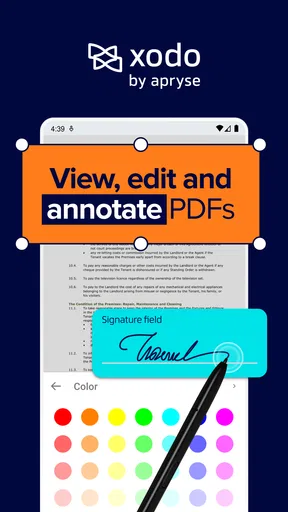
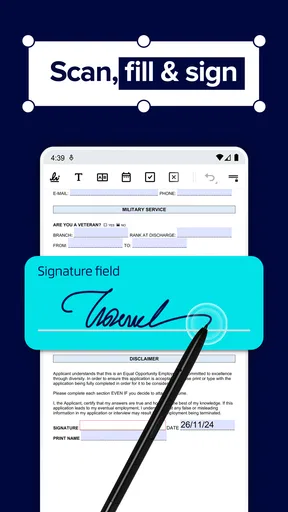
Signing on a phone is handy when a form is due and there is no printer nearby. It is not the same as checking every clause on a small screen, though. I’d zoom in, confirm that the signature is positioned correctly, and review the saved file before sharing it. Xodo helps reduce the paper-and-scanner steps; it cannot replace careful reading or a decision about whether an electronic signature suits the situation.
Worth Reading Before You Choose

EA SPORTS FC Mobile 26 Is a Bigger Football Game, but It Takes Time

Flipboard Shows What News Apps Must Do Beyond the Feed

Switching to Android Auto Means Rethinking Your Driving Routine

Google Calendar Makes a Crowded Week Easier to Manage

Ludo King Makes the Most of the Minutes Between Plans

Baby Panda World Brings Quick Play to Modern Phones, but Its Game Library Feels Busy
Using Xodo in everyday PDF work
Hey there! So, I recently got my hands on Xodo PDF Editor & Reader, and let me tell you, it’s been quite the ride. Whether you’re juggling a bunch of PDFs for work or just need a reliable reader for your eBooks, this app promises to cover all bases. Let’s dive right into what makes Xodo tick and why you might want to give it a spin.
Getting Started with Xodo
First things first, downloading Xodo PDF Editor & Reader is a breeze. It’s available on both Android and iOS, so no matter which team you’re on, you’re covered. Once installed, the interface is clean and intuitive—no unnecessary clutter, which I absolutely love. You’re greeted with a simple home screen that lets you dive straight into your files.
Features Galore!
One of the standout features of Xodo is its comprehensive editing capabilities. You can annotate, highlight, and even sign documents. It’s like having a mini office in your pocket! I found the annotation tools really handy when I was reviewing a lengthy document for work. The app lets you add comments, underline text, and draw shapes—all super useful for making notes on the go.
Another cool feature is the ability to fill out forms. Yup, you heard that right! No more printing out forms just to sign them. You can fill them out directly on your device and save or share them instantly. Honestly, this feature alone makes Xodo a must-have for anyone dealing with paperwork.
Reading Experience
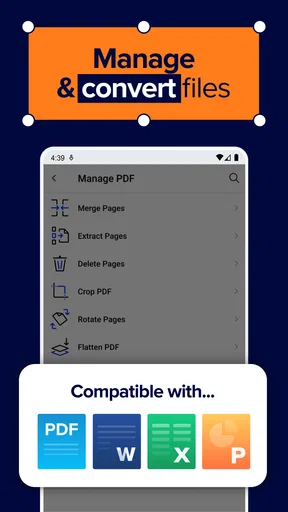
When it comes to reading, Xodo doesn’t disappoint. The app supports a variety of file formats including PDF, Word, and PowerPoint. It even lets you view and annotate PDFs in night mode, which is a lifesaver for late-night reading sessions. You can also bookmark pages, which is perfect for those who, like me, tend to jump around documents.
Oh, and did I mention the split-screen mode? It’s a game-changer for multitasking. You can view two documents side by side, which is perfect for comparing files or taking notes while reading. Trust me, once you try it, you’ll wonder how you ever lived without it.
Cloud Sync and Collaboration
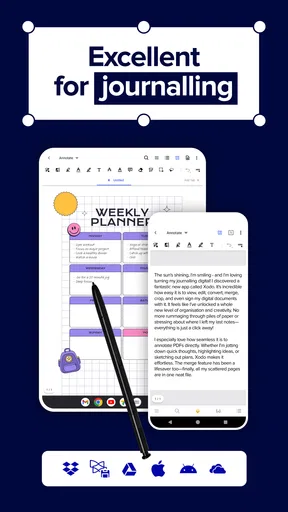
In today’s digital age, cloud integration is a must, and Xodo nails it! You can sync your documents with Google Drive, Dropbox, and OneDrive. This means you can start reading on your tablet and pick up right where you left off on your phone or computer. It’s seamless and ensures you always have access to your files.
If you’re working in a team, Xodo’s collaboration features will be right up your alley. You can share documents and collaborate in real-time. Whether it’s team members adding comments or you all working on a shared document, Xodo makes it easy to stay in sync.
Customizing Your Experience
What I really appreciate about Xodo is the level of customization it offers. You can tweak settings to suit your reading preferences—from changing the page layout to adjusting the zoom levels. I found the continuous scrolling option particularly useful for long documents. Plus, you can set your preferred annotation colors and tools, so you always have quick access to them.
Performance and Usability
Performance-wise, Xodo is smooth and responsive. I didn’t experience any lag, even when handling large documents. The app does a great job of rendering files quickly, which is crucial when you’re trying to get work done efficiently. The user interface is straightforward, making it easy for anyone to pick up and use without a steep learning curve.
Choose the right tool for the job
For a typical day, I can imagine opening a meeting agenda, highlighting a few decisions, and adding a short note beside an item I need to follow up on. Later, I could return to the marked copy instead of searching through a separate notebook. That is where a mobile PDF editor earns its place: it keeps the document and the comments together. I’d still name or organize copies carefully, because useful annotations are less useful if I cannot tell which file contains the latest changes.
For students, the combination of bookmarks, highlights, and comments is a natural fit for readings and handouts. A practical tip is to use a consistent color scheme—one color for key ideas, another for questions—rather than highlighting everything. The app’s customizable annotation colors make that approach easier to maintain. For people who mostly read novels or long-form text, though, a dedicated e-book reader may be more comfortable for library management and reading habits; Xodo makes more sense when the PDFs themselves are the material to work on.
Compared with a basic PDF viewer, Xodo is more useful when the task includes marking, form completion, or signing. Compared with a desktop PDF editor, it is better suited to quick review and routine edits while away from a computer, not intricate document production. I would not choose a phone screen for rebuilding a complex layout or checking tiny formatting details across many pages. The best alternative depends on the job: a simple reader for uncomplicated viewing, a desktop editor for precision, and Xodo for a flexible middle ground.
Small-screen trade-offs and document checks
Split-screen viewing is most valuable when the documents are short enough to remain readable at the size your device allows. I use that idea for comparing two versions of a brief form or checking a reference page while reviewing another file. On a compact phone, the reduced page area can make side-by-side work feel cramped; on a larger screen, it is more practical. When legibility suffers, switching between documents is often quicker than forcing a comparison into one view.
Annotations also work best when I decide what I want to communicate before adding them. A highlight can flag a passage, while a brief comment can explain why it matters; drawing marks everywhere can make the page harder to read later. For a review that another person will receive, I would reopen the saved document and inspect a few marked pages. That catches misplaced marks and gives me a chance to make sure the notes are understandable without my explanation.
Form filling is a strong convenience, but I would not assume every form behaves identically. After entering details, I check that each field is visible, the text has not crowded its box, and the signature has not covered nearby wording. If a form is important or unusually designed, a quick final review on a larger screen can be worthwhile. Xodo helps with the mobile part of the process; the user still has to verify the finished document.
Where I would draw the line
I would recommend Xodo most to someone who regularly receives PDFs and needs to read, annotate, complete, or sign them without sitting at a computer. It is also a sensible choice for students who want their notes attached to the reading and for workers who review documents while commuting or between meetings. If your use is only occasional viewing, a simpler reader may be enough. If your work depends on advanced page design or exact production controls, a full desktop editor is the safer fit.
There is also a difference between being able to share a document and being ready to share it. Before sending a marked file, I would remove any private notes that were intended only for me and confirm that the recipient is getting the correct version. When collaborating, clear file names and a short message explaining what feedback is needed can prevent confusion more effectively than adding more comments to the page.
Final Thoughts
All in all, Xodo PDF Editor & Reader is a powerhouse app that combines functionality with ease of use. Whether you’re a student, professional, or someone who just loves reading, Xodo offers a robust set of features that cater to various needs. Its editing tools, reading experience, and cloud integration make it stand out in a crowded market. So, if you’re on the hunt for a reliable PDF editor and reader, give Xodo a shot—I’m sure you’ll find it as indispensable as I have.
Happy reading and editing!
My cautious recommendation
I like Xodo most when I treat it as a capable mobile workbench rather than a universal replacement for every PDF tool. Its mix of reading, markup, form handling, and access to files makes everyday tasks less fragmented, while the sensible checks—keeping a clean original, reviewing a signed copy, and choosing a sharing destination deliberately—help me stay in control of the work. That balance is why I’d try it for ordinary document tasks, while keeping a dedicated reader or desktop editor available for needs it does not suit.
Pros
- User-friendly interface for easy navigation.
- Supports multiple file formats seamlessly.
- Real-time collaboration with cloud integration.
- Annotation tools are versatile and intuitive.
- Fast loading even with large PDF files.
Cons
- Limited advanced editing features.
- Occasional ads can interrupt workflow.
- Some tools hidden in submenus.
- Offline features are somewhat restricted.
- No dark mode available for night reading.
FAQs for PDF Reader & Editor: Xodo
What features does Xodo PDF Editor & Reader offer?
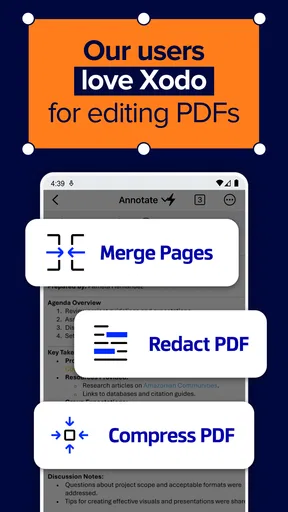
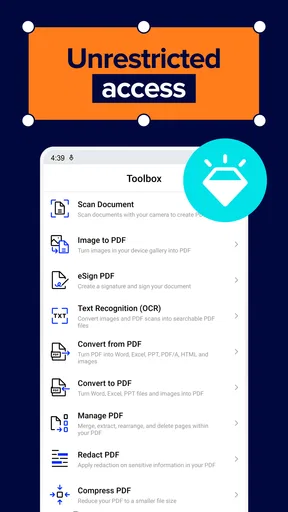
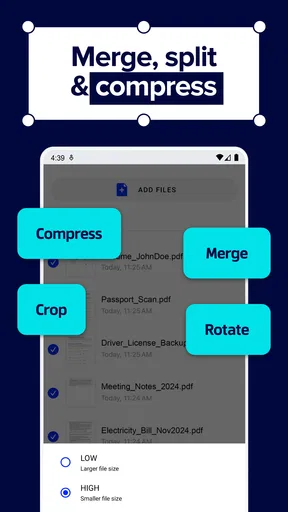
Xodo PDF Editor & Reader offers a comprehensive suite of features including PDF viewing, annotation, and editing. Users can highlight text, add comments, and fill forms. It also supports merging and splitting PDFs, and integrates with cloud services like Google Drive and Dropbox for easy access and sharing.
Is Xodo PDF Editor & Reader free to use?
Yes, Xodo PDF Editor & Reader is free to download and use. It offers a robust set of tools without any hidden costs or subscription fees. However, some advanced features may require in-app purchases, so users should check for any specific needs they have that might come at an additional cost.
Can I use Xodo PDF Editor & Reader offline?
Yes, Xodo PDF Editor & Reader can be used offline. You can view, annotate, and edit PDFs without an internet connection. However, features that require cloud access, such as saving files directly to Google Drive or Dropbox, will need an internet connection to function.
Is Xodo PDF Editor & Reader compatible with both Android and iOS?
Xodo PDF Editor & Reader is available for both Android and iOS devices. It provides a consistent user experience across platforms, ensuring that you can work on your PDFs seamlessly whether you’re using a smartphone or tablet. Make sure your device meets the app's system requirements for optimal performance.
How secure is my data when using Xodo PDF Editor & Reader?
Xodo takes data security seriously, employing encryption to protect your files and personal information. When using cloud services, your data is stored securely according to the policies of the respective service. Always ensure your app and device are updated to the latest versions to maintain security.


